Image resolution and megapixels are among the most misunderstood terms in digital imaging — among enthusiasts and professionals alike.
Lets start with a claim that earns its share of raised eyebrows: “DPI is practically irrelevant until you want to print your image.”
Surprising? Perhaps. But it’s true — and explaining why is the point of this article.
One clarification before we begin: when we refer to DPI or PPI in the context of printing, we always mean “at final print size”. A file described as ‘300 dpi’ is only meaningful once you know the size it will be printed at — the same 300dpi file that prints beautifully at A4 will not hold up at A1.
What DPI Is — and What It Isn’t
DPI stands for Dots Per Inch. It refers specifically to the physical dots a printer deposits on paper. A monitor doesn’t work in dots — it works in pixels. So when someone talks about “300 dpi” in relation to an image file, they’re technically talking about PPI — Pixels Per Inch.
The distinction matters because it creates confusion. The DPI of a file is just a way of measuring the same number of pixels relative to a physical size. Changing the DPI of a file without changing the pixel count changes absolutely nothing about the file or how it looks on screen. What changes is the physical size at which the printer reproduces the image — and that is where resolution starts to matter.
What Actually Determines How Large You Can Print: Total Pixels
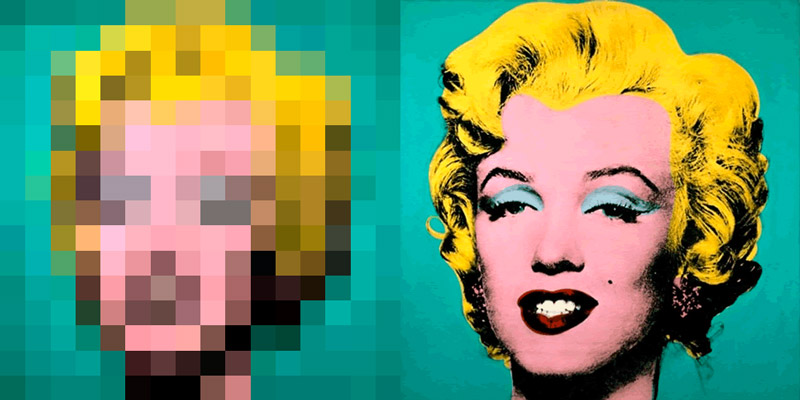
What matters is the total number of pixels in the image — width × height. That number determines the detail available for a given print size.
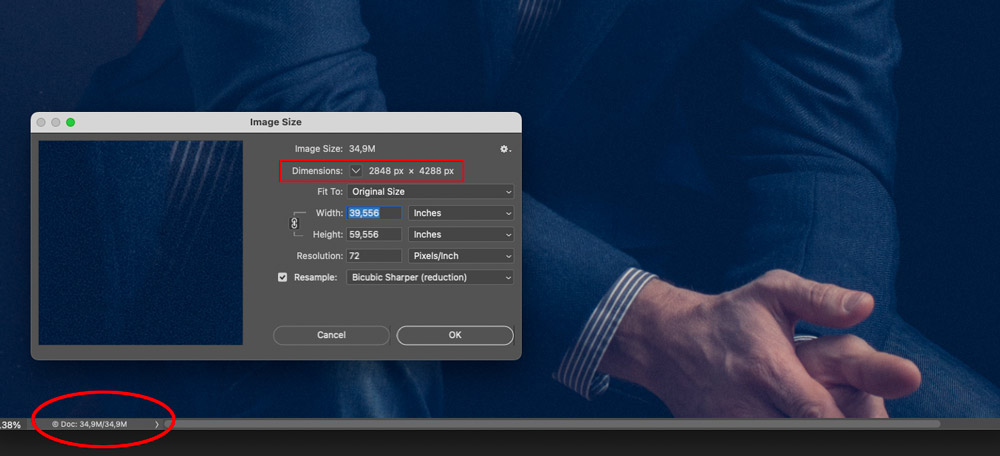
A 2848 × 4288 pixel image can be measured at 72 dpi, 150 dpi, 300 dpi, or any other number. The pixel count is identical in every case. What changes is the physical size at which those pixels are distributed.
At 72 ppi, this image prints at 39.5 × 59.5 inches (100.4 × 151.4 cm) — an enormous size.
How to Change DPI Without Affecting Quality
In Photoshop, to change the resolution without affecting the pixels:
Step 1 — Go to Image → Image Size
Step 2 — Uncheck Resample Image — the pixel count is locked
Step 3 — Change the resolution to 300 and watch the physical dimensions change while the file size stays identical
The result: physical dimensions reduce to 9.5 × 14.3 inches (24.1 × 36.3 cm) — but the file remains 34.9M and the pixels are exactly the same.
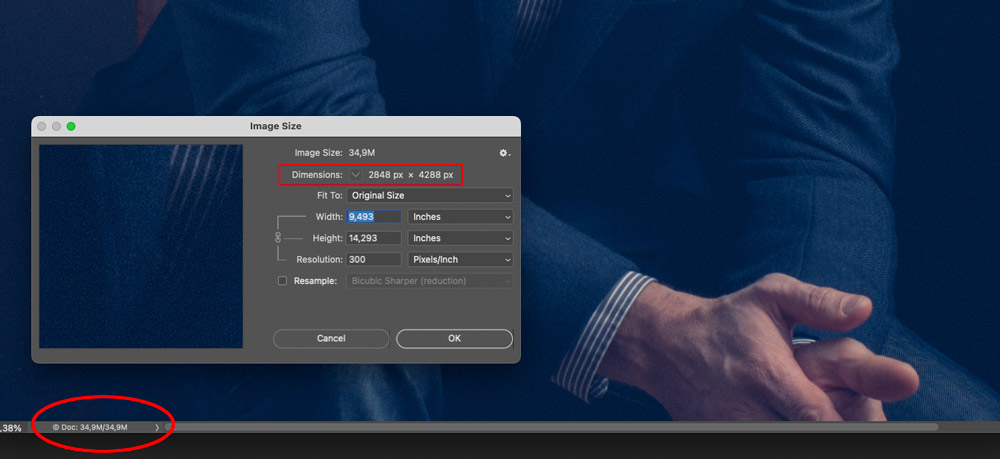
Important: as long as Resample Image is unchecked, you can change the DPI as many times as you like without affecting image quality.
Resolution and Quality are Not the Same
It’s a common mistake — and an understandable one — to treat resolution and quality as the same thing. They aren’t.
A file can be 300 ppi and still be poor quality — if the original image is out of focus, poorly lit, excessively noisy or carelessly upsampled. Conversely, a 150 ppi file can be excellent quality — if it was captured with technical rigour, good light, and the right equipment.
Objectively, the pixel count only tells us how many pixels the file contains. As with most things, quantity and quality are separate questions — though the two can absolutely coexist. When both come together, you’re in the best possible position. That’s precisely what our artwork photography and digitisation service is designed to deliver.
This has a practical consequence for upscaling: a clean, well-captured file at 150 ppi responds well to artificial enlargement because the existing pixels contain real information — the algorithm has something to work with. A file of compromised quality at the same resolution amplifies the problems rather than solving them. Upscaling doesn’t improve a weak file; it exposes it.
What Resolution Do I Need for Giclée Fine Art Printing?
This is where the question that actually matters comes in — and the answer depends on several factors: the intended viewing distance, the paper surface, and the nature of the detail in the work.
The reference we use at Kilford:
— 200–300 ppi native at the final print size covers the vast majority of fine art printing scenarios. Within that range, in our experience, the difference between the two resolutions disappears completely once the print is on a wall.
— 150 ppi can produce very good results for large format prints — especially on textured papers, for work viewed at normal gallery distances, and when the source file is of good quality. It’s not a resolution to avoid; it’s a resolution to use knowingly.
— Below 150 ppi, from certain sizes onwards, detail loss starts to become visible — particularly on smooth papers and in work with fine detail or high spatial frequency.
What rarely improves the situation is upscaling — artificially enlarging the file to hit an arbitrary number. More often than we’d like, we receive files that have been upscaled before sending — soft, with haloing and compression artefacts already baked in. The printer faithfully reproduces what it receives. A clean native file at 150 or 200 ppi will outperform a poorly upscaled file at 300 ppi every time.
The Formula
To calculate the maximum print size at a given resolution:
— Width in pixels ÷ desired resolution = print width in inches
— Height in pixels ÷ desired resolution = print height in inches
Example with a 6000 × 4000 pixel image:
— At 200 ppi → 30 × 20 inches (76 × 51 cm)
— At 300 ppi → 20 × 13.3 inches (51 × 34 cm)
To convert the result to centimetres, multiply by 2.54.
Your megapixel count is width × height in pixels. For example: 3000 × 2000 = 6,000,000 = 6 megapixels.
Native Resolution vs. Interpolated Resolution
Native resolution is the number of pixels the camera, scanner, or original file contains — without any resizing or resampling. This is the number that determines the real detail available.
Interpolated resolution — obtained through upscaling — is not native resolution. The software estimates the missing pixels. The quality of the source file determines how well that estimation goes: a clean, well-captured file tolerates enlargement far better than a compromised one.
At Kilford, file quality issues are flagged before the job runs — not discovered after.
In Summary
— DPI/PPI is a unit of measurement, not a measure of quality
— What determines the available detail is the total pixel count — for a given print size
— Changing DPI with Resample Image unchecked does not affect quality — the pixel count stays the same
— Changing DPI with Resample Image checked changes the pixel count — and can affect quality
— Resolution and quality are not the same thing — a 300 ppi file can be poor quality; a 150 ppi file can be excellent
— 200–300 ppi native at print size is the recommended range for fine art printing
— 150 ppi native can work well for large format, textured papers, and good-quality source files
— Upscaling rarely improves — and frequently makes things worse, especially with compromised source files
If you have questions about your file’s resolution or quality for giclée printing, get in touch. It’s exactly the kind of conversation we have before starting — not after.
FAQ
What is the difference between DPI and PPI?
DPI (Dots Per Inch) refers to the physical dots a printer deposits on paper. PPI (Pixels Per Inch) refers to the pixel density of a digital image file. The two are often used interchangeably but describe different things. When preparing files for printing, PPI is the relevant measurement — DPI is what the printer does with the result. A Canon imagePROGRAF Pro prints at up to 2400 dpi — but those dots are not mapped one-to-one to the pixels in your file. Multiple dots across multiple ink channels combine to reproduce the colour and tone of each pixel through dithering.
What DPI do I need for giclée printing?
200–300 ppi native at your final print size covers the vast majority of fine art giclée printing scenarios. Within that range, the difference is imperceptible under normal viewing conditions. What matters is that the resolution is native — upscaling a lower-resolution file to hit 300 ppi rarely improves the result and often makes it worse.
Does changing DPI in Photoshop affect quality?
A: It depends on whether Resample Image is checked. With Resample Image unchecked, changing the DPI only changes the physical output size — the pixel count stays the same and quality is unaffected. With Resample Image checked, the pixel count changes — the software adds or removes pixels, which can affect quality.
Can I print a 150 ppi file as fine art giclée?
Yes — with the right conditions. Viewing distance is key here: at normal gallery distances, the difference between 150 and 300 ppi is imperceptible. A clean, well-captured or natively created file at 150 ppi native can produce excellent results, particularly for large format prints on textured papers. The key word is native — a file upscaled to 150 ppi is a different situation.
What is native resolution?
Native resolution is the pixel count your camera, scanner, or created digital file contains without any resampling. It represents the real detail available in the file. Interpolated resolution — obtained by upscaling — is not native: the software estimates the missing pixels. For fine art giclée printing, native resolution at print size is always what we aim for. It isn’t always possible — but it’s the starting point.